Meta changes your ads before they ever run.
Meta may turn some creative features on by default. One button lists them before you publish, so you keep what fits your brand and turn off what doesn't.
What Meta may turn on by default
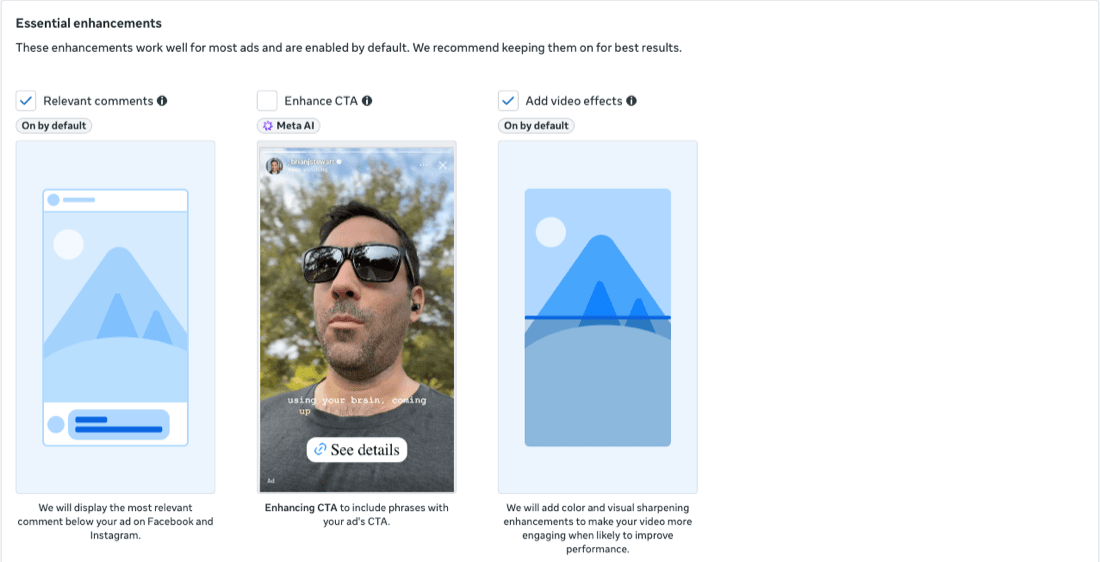
When you create an ad in Ads Manager, Meta says some creative features “may be enabled by default, if we predict they will help improve performance.” Throughout the creative setup they’re labeled On by default. Text, formats, translations, even where the click lands.
| Category | What Meta says it does |
|---|---|
| Creative setup | Additional ad sources such as website, app, or catalog, that can be used for enhancements and formats. |
| Advantage+ creative enhancements | Visual, audio, or text features that optimize or enhance your creatives. |
| Advantage+ creative translations | Automatically translate copy to resonate with more audiences. |
| Interactive experiences | Surface relevant details from your ad sources when people spend a few seconds or interact with your ad. |
| Related media | Image or videos from existing ads or connected sources that are relevant to your creative. |
| Format display options | Formats like carousel or collection that may be auto-generated from your assets. |
| Personalized destinations | Sends people to the experience most likely to drive conversion. |
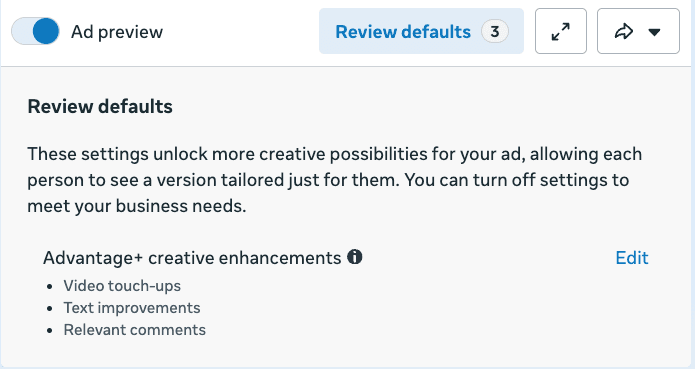
Personalized destinations
This is the one that surprises people most: Meta can send the click somewhere other than the page you picked. If your ad has to land on one specific page, check it before anything else. Meta shows it on ads in a Sales campaign with Website as the conversion location, and notes it may not be available to you yet.
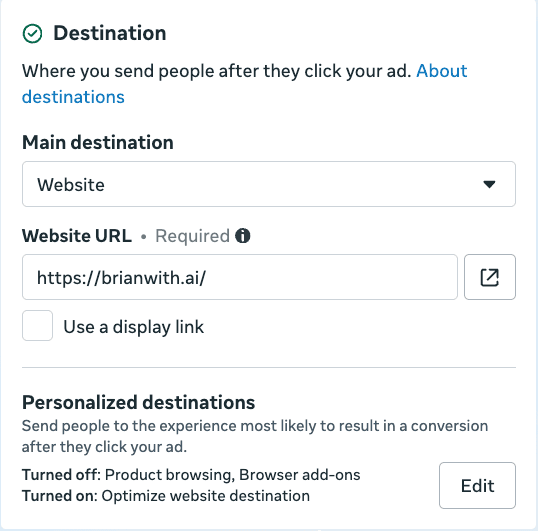
Review defaults, before you publish
- Open the adIn Ads Manager, create a new ad or open a draft.
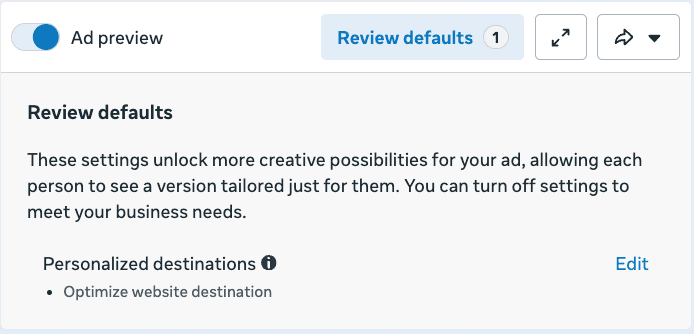
- Click Review defaultsMeta puts it next to advanced preview. It’s a list of every default-on creative feature, grouped by category.
- Check each categoryHover the tooltip icon on a category to see whether its features are on by default for this ad, and what they do.
- Click Edit to opt outEdit takes you straight to that part of the ad setup, where you can turn it off. Keep what fits your brand. Turn off what doesn’t.
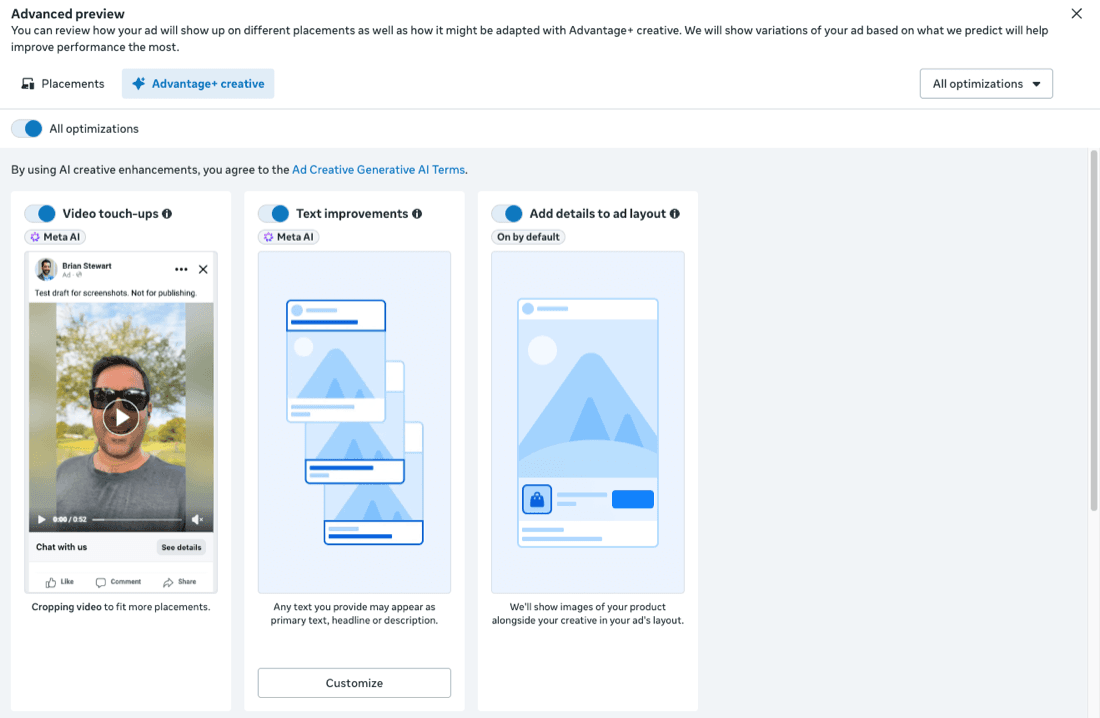
Check advanced preview too
Features you turned on yourself aren’t on it: in Meta’s words, “features manually opted-in will not show on this surface.” And Meta notes that some enhancements can only be turned off in advanced preview, so look there as well before you publish.
It’s on you to look
- Reviewing is optionalMeta: “Review is optional, and you can publish your ad at any time.” Nothing stops you publishing with every default on, so make the check part of every launch.
- You can turn them off later tooMeta says the enhancements that are on by default can be turned off at any time. On a published ad, go to its Advantage+ creative section, where you’ll see how many enhancements are on, and click Edit.
- Ad sources carry overWhen you opt out of an ad source, Meta says that preference applies to all future ads you create in that ad account. The rest you set ad by ad.
- This is an Ads Manager featureMeta says reviewing defaults is available to all advertisers using Ads Manager. A boost has its own Advantage+ creative setting, so check that one when you boost.
What the download adds
That’s the method. The 31-page guide is the method with everything around it.
- Before you spend a dollarWhether the business is ready for ads, and the signal to look for before you spend.
- Objective, structure and audiencesWhich objective to pick, how to structure the campaign, and warm audiences first.
- Budget and the learning phaseWhat the learning phase is, and what resets it.
- Set it up, step by stepAccounts, tracking, audiences and your first campaign, with this check in its place, then the first seven days.
- Creative, measuring and the weekly reviewCreative as targeting, what Meta can't see, and a weekly review with a pre-launch checklist.
More ad moves
Take the whole build with you: the 31-page playbook, from the objective to the weekly review, with this check where it belongs. Plus more guides, tips and tricks, and first word on events and launches.